Canvaの入稿データ作成時の注意点
仕上がりサイズの設定
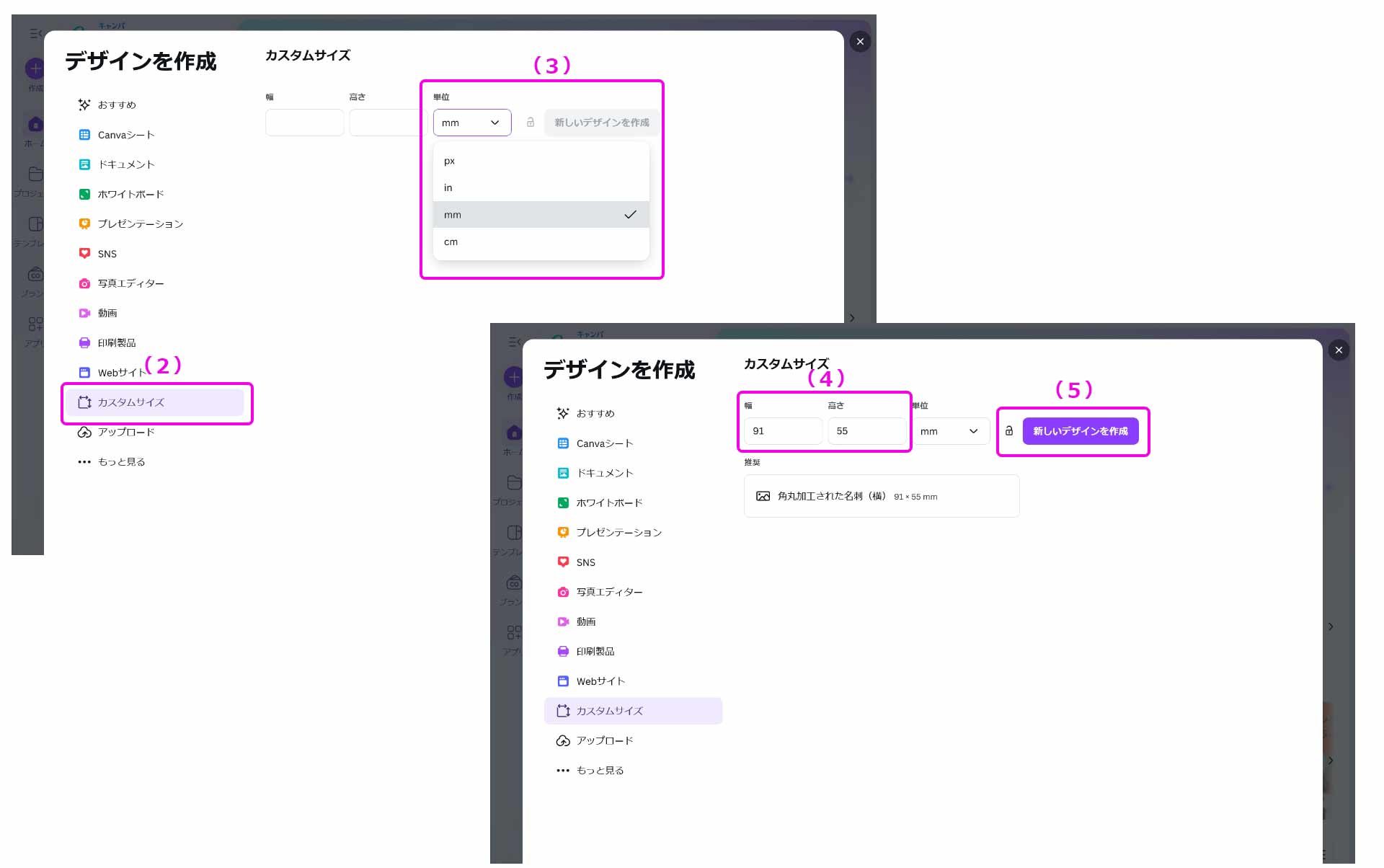
(1)「+デザインを作成」をクリックします。

(2)「カスタムサイズ」をクリックし、
(3)単位を「mm」に設定します。
(4)「幅」と「高さ」を入力します。この際、幅に入力した数値が横、高さに入力した数値が縦を表しています。デザインのサイズに合わせて正しく入力してください。
塗り足し設定
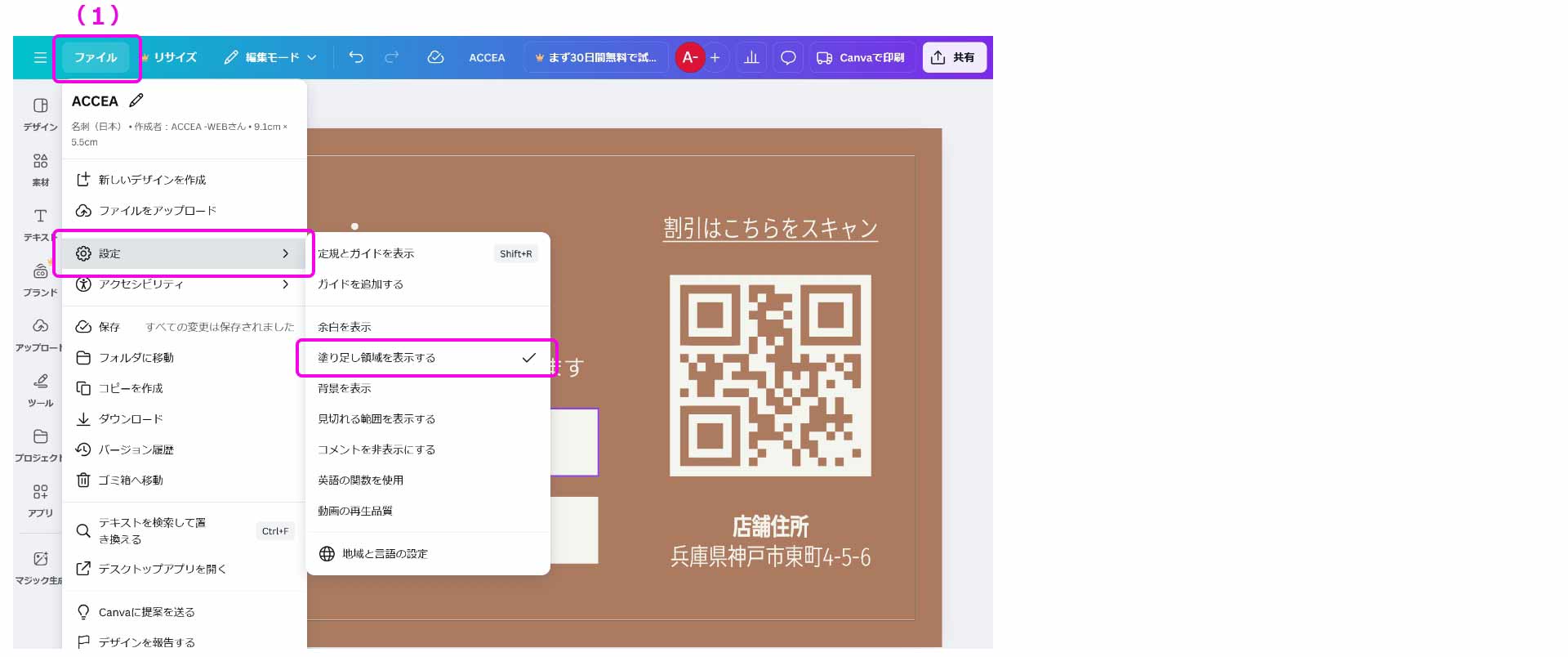
(1)「ファイル」>「設定」>「塗り足し領域を表示する」をクリックします。デザイン画面に塗り足しが表示されます。
【重要】塗り足し領域まで、必ずデザイン(背景色や画像)を広げてください。塗り足しがない場合、断裁時のズレにより印刷物の端に白い線が入る原因となります。
PDFの保存方法
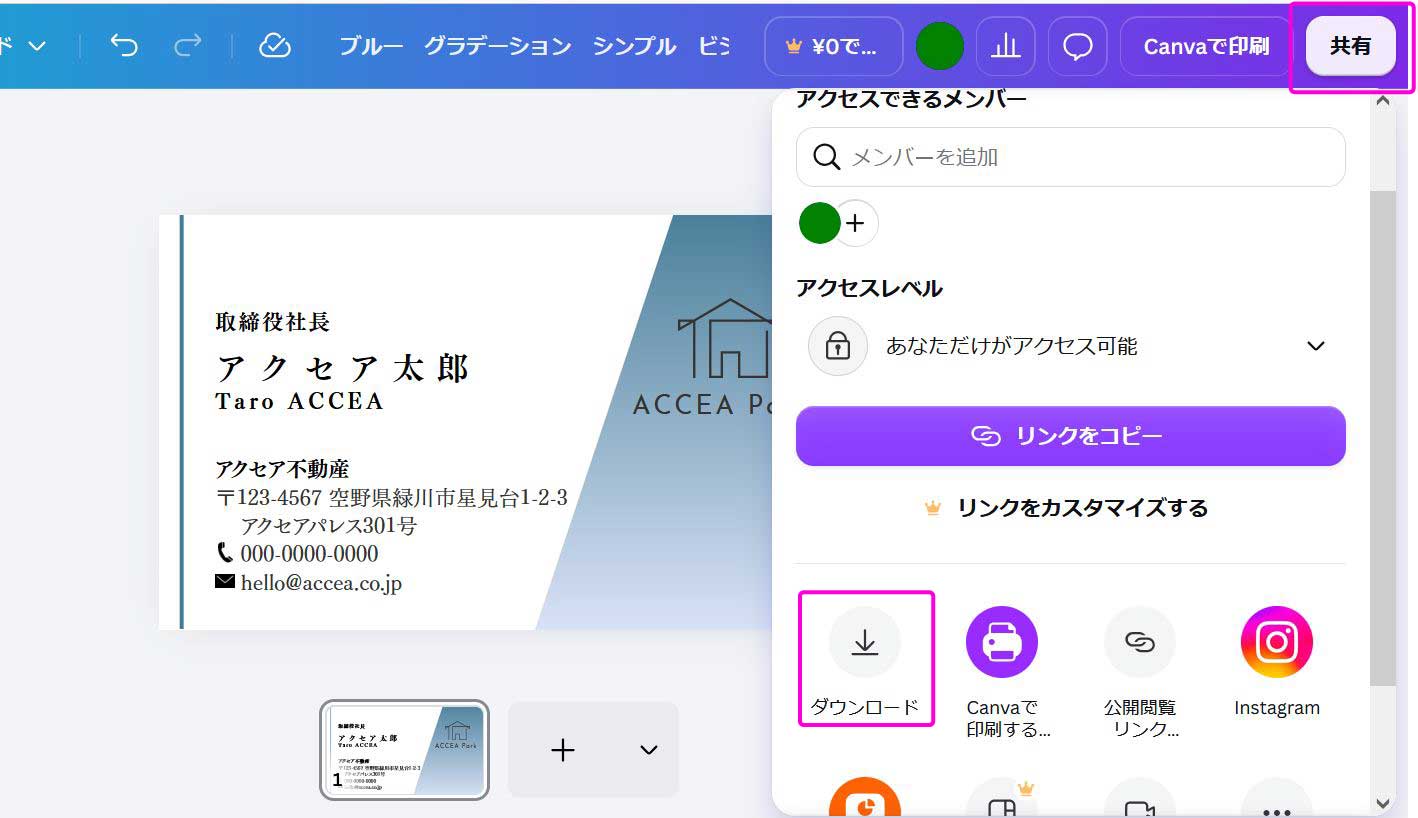
(1)「共有」>「ダウンロード」をクリックします。
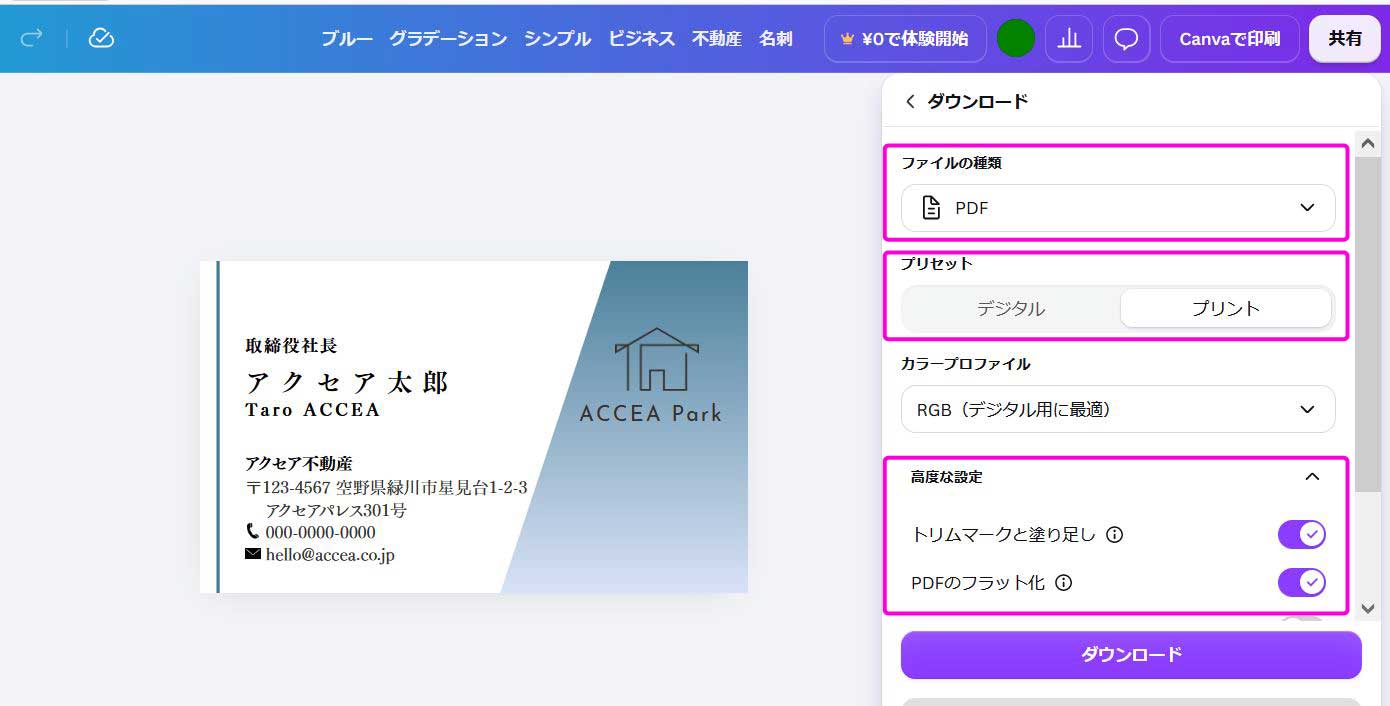
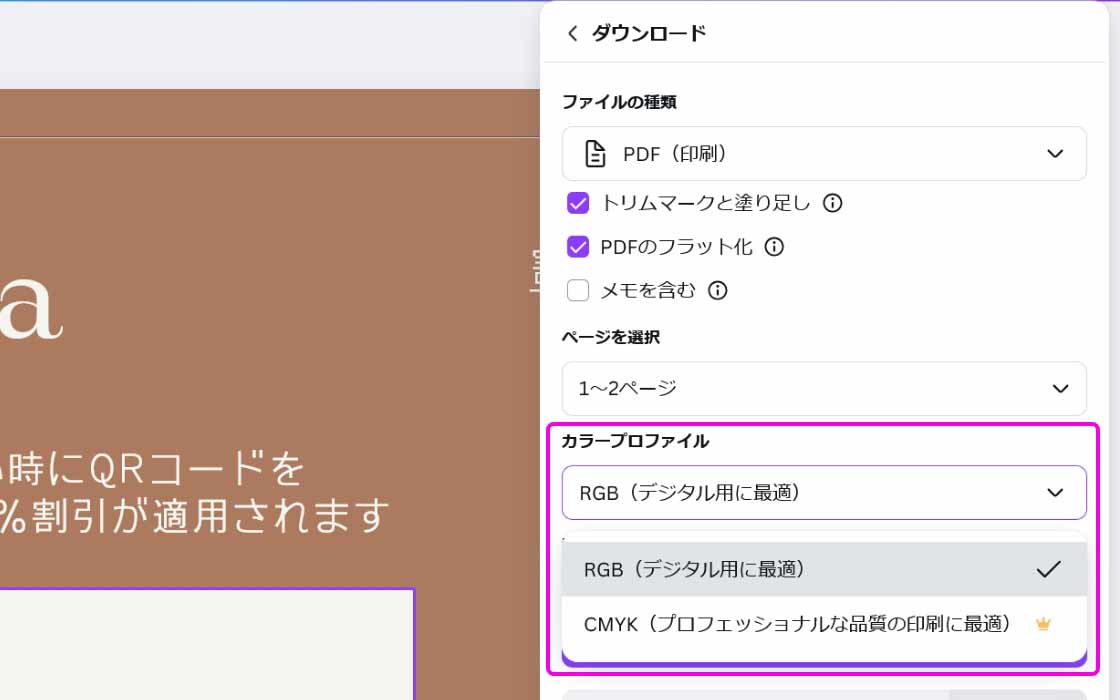
(2)「ファイルの種類:PDF」「プリセット:プリント」を選択します。
「高度な設定」>「トリムマークと塗り足し」「PDFのフラット化」をオンにしてダウンロードします。
色(カラープロファイル)について
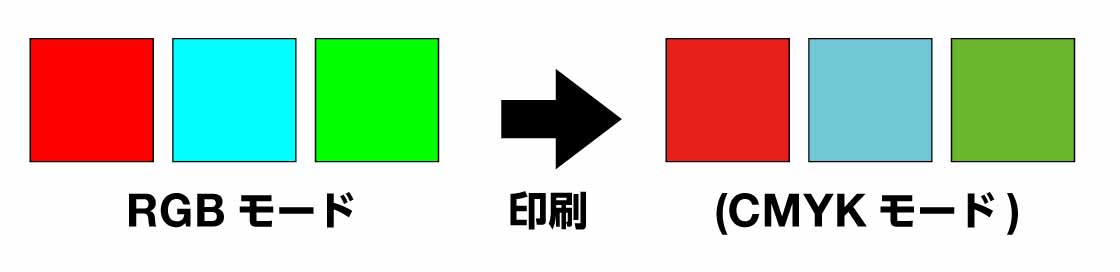
RGBは画面表示用のデータのため、画面の光を利用して鮮やかな色を表現できますが、紙に印刷すると光は失われます。
RGBでご入稿いただいたデータを印刷した場合、画面上で見るよりも色がくすんで見えたり、違う印象に見える場合があります。予めご了承ください。
デザインと異なるフォントが印刷される場合の対処方法
PDFファイルのフォントの埋め込みについて
PDFファイルを入稿する際、フォントが正しく表示されないことがあります。これは、使用したフォントがPDFに埋め込まれていないためです。埋め込みされていないフォントは、代替フォントに置き換わり、デザインが崩れる可能性があります。PDFに埋め込み可能なフォントを使用し、フォントが変わらないようにしましょう。
Canvaでは、「PDF(印刷)」形式でエクスポートするとフォントが自動的に埋め込まれますが、まれに埋め込みがうまくいかない場合があります。そのため、以下の方法でフォントの確認と対策を行ってください。
Canvaでのフォント埋め込み確認と対策
Canvaの標準フォントや、埋め込み対応のフォントを使用しましょう。外部からアップロードしたフォントは埋め込めないことがあります。
PDFファイルをダウンロードし、Adobe Acrobat Readerなどのビューアでフォントが正しく表示されているか確認します。表示が崩れていなければ、埋め込みは成功しています。
Adobe Acrobatで「ファイル」→「プロパティ」→「フォント」タブを確認し、フォントが「埋め込み」または「埋め込みサブセット」と表示されていれば、埋め込みは成功しています。
フォントが埋め込まれない場合、Adobe Illustratorなどでテキストをアウトライン化する方法もあります。ただし、アウトライン化すると後からテキストを編集できなくなるため注意が必要です。